Skip to content Skip to main navigation Report an accessibility issue
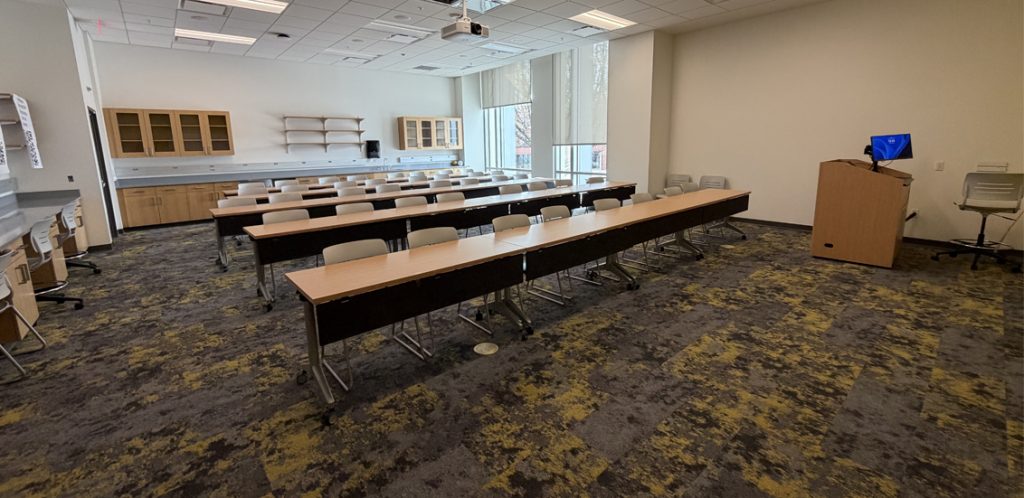
tables for students in rows facing podium for instructor

Agriculture and Natural Resources Building 124 – Departmentally-Owned Classroom

This room does NOT have a Cynap. The wall style below is CLOSE to what the room contains, but it does not contain a Cynap.

Room Technology Updated: Summer 2024

This is a departmentally-owned room. OIT does not support the computer in this classroom. OIT can offer some assistance with learning the technology in this classroom, but because this is a departmentally-controlled space, we are not able to offer full assistance. Information on this page may not be completely accurate and may be outdated due to department updates.

Classroom Access button with icons for map, listening, wheelchair access, and classroom photos

Your Room Contains

Classroom Resources:
Instructor Resources:
  • Control Panel: Wall Style 9
  • Classroom computer: Departmentally-supplied Windows
  • Cables:
    • 1 HDMI cable(s)
    • 1 USB-C Cable(s)
Instructor Screens:
  • The podium monitor is set up to only show the departmental Windows computer. It will not show HDMI or USB-C Podium Monitor(s)
Audience Screens:
  • 1 Ceiling Projector(s)
Audio Visual:

How To...

Display on Screen:

  1. Tap Turn System On
  2. Tap Screen
  3. Choose the device you wish to display on the screen such as a laptop connected to Cynap, PC, HDMI, or USB-C.
    Note: the Blank Screen option will stop the currently selected image from projecting.

When Finished

  1. Tap Home
  2. Choose Turn System Off
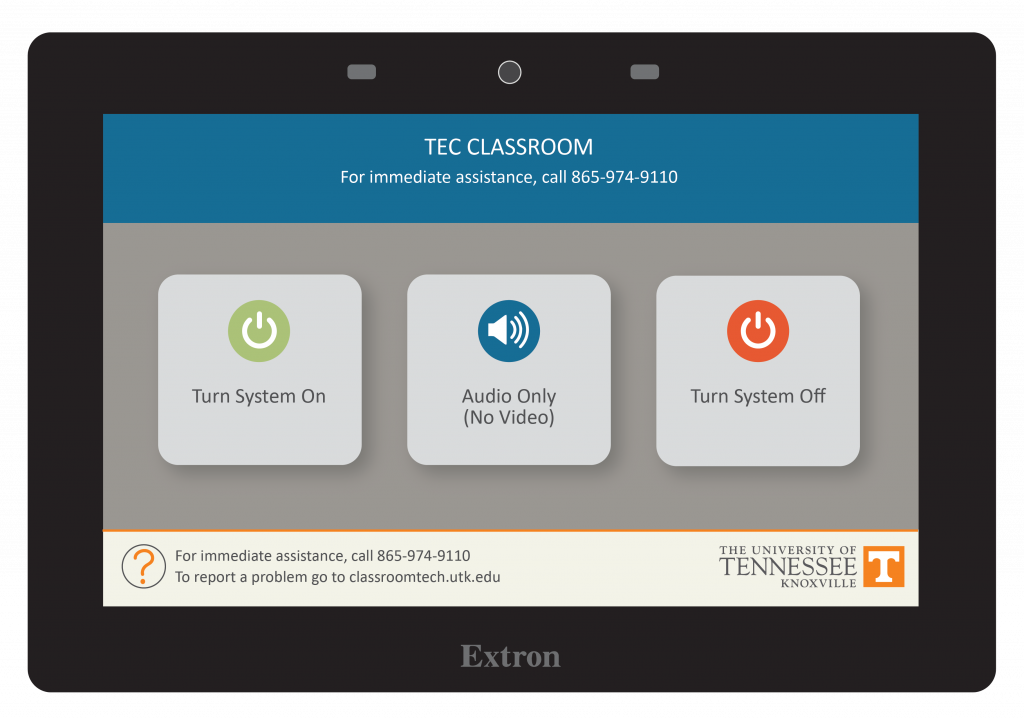
Control Panel main page with buttons for Turn System On, Audio Only, and Turn System Off
STEP 1
STEP 2-3

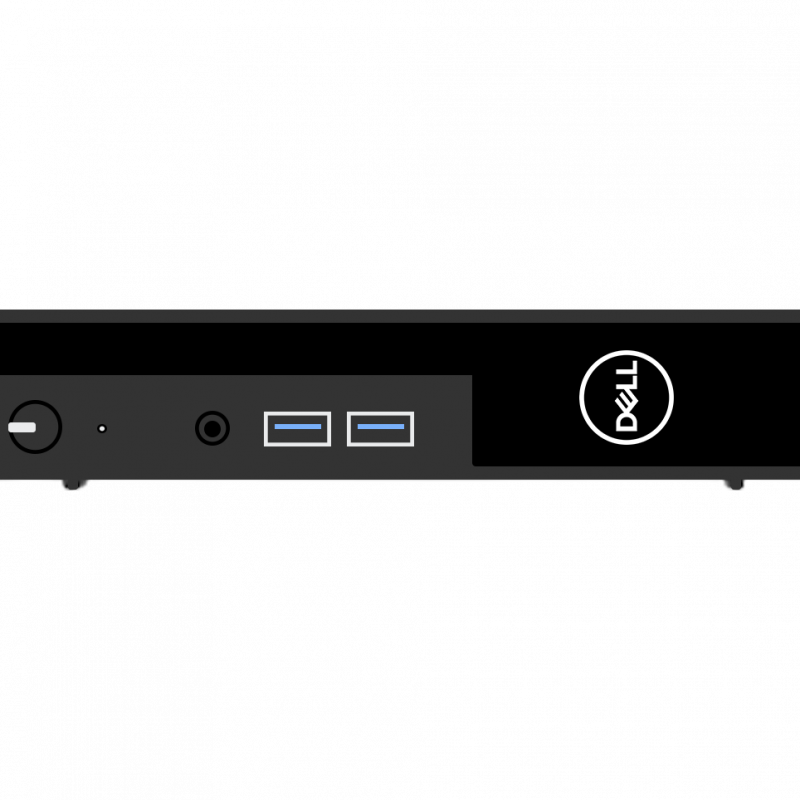
a graphic of a Dell computer

Some rooms on campus have supplied computers in the classroom. The computer in this room is supplied by the department that primarily uses the space. OIT does not have access to login information on this machine. Please contact your department to get information on how to log in or use this computer.

If this computer is using a departmentally provided username/password, make sure you log out of any app when you are done. Otherwise, anyone who logs onto the computer will be able to log into your apps under your name.

Possible Feature: Using the Camera and Supplied Computer

Some departments chose to connect a room-provided camera to the computer. IF your classroom has a camera, it MAY be connected to the room computer. If so, you should be able to use the Classroom Supplied Computer to run a Zoom meeting using the in-room microphone and camera. Note – logging onto the classroom supplied computer to Zoom will log you out of Zoom on your personal computer.

  1. Log onto the computer using your NetID and Password (or the computer may already be logged in for you with a local account).
  2. Launch Zoom
  3. Choose Sign in
  4. Select the Sign in with SSO option on the right.
  5. Type in Tennessee before the .zoom.us
  6. Select Continue
  7. Log in to Zoom with your NetID and Password
  8. Approve the Two-Factor Authentication
  9. Choose Launch Zoom
  10. Launch your meeting
  11. Choose Join with Computer Audio (you may want to select the checkbox to Automatically join audio by computer when joining a meeting as well)
  12. Turn on the lavalier (lapel-style) mic.