Skip to content Skip to main navigation Report an accessibility issue
tables and chairs facing projector screen

Academic Resource Building 114 (formerly Nursing Education Building)

Room Technology Updated: Summer 2025

Note: This room was combined with room 112 to make one long room. It has two doors. One is marked 112 and the other is marked 114.

Classroom Access button

Select the image above to go to the classroom accessibility pages. You’ll need to be logged into your UT Microsoft 365 account to view them.
Your Room Contains

Classroom Resources:
Instructor Resources:
  • Control Panel: Wall Style 12
  • 1 Cynap Pure Mini(s)
  • Cables:
    • 1 HDMI cable(s)
Instructor Screens:
Audience Screens:
  • 1 Ceiling Projector(s)
Audio Visual:
Note: Control Panel Note:

How To...

Display on Screen:

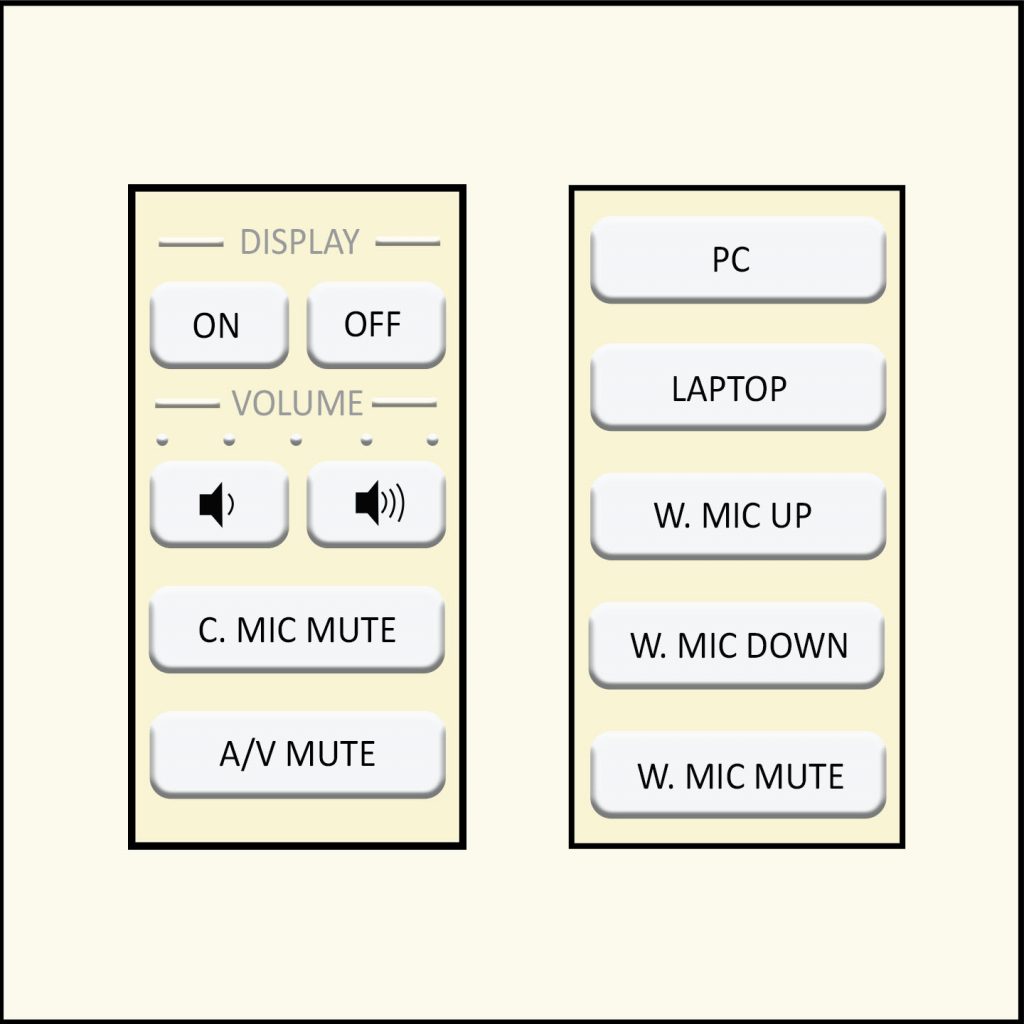
  1. Under display tap On.
  2. Choose the device you wish to display on the screen such as a Laptop, or PC.

When Finished

  1. Under display tap Off.
Preview of wall style 12

The Cynap Pure Mini can have a wireless device attached to it. It is not set up for recording in Zoom, Panopto, or Teams. You can not connect via cables such as USB-C or HDMI to this device.

See this page for detailed instructions on connection to Cynap wirelessly on Mac or Windows.

Connecting Your Laptop Wirelessly:

  1. Connect your laptop.
    • On Windows: 
      1. Use the Windows Key + K Key to bring up the Project menu.
      2. Choose Connect to a wireless display
      3. Choose the Cynap for your room. 
    • On MacBook: 
      1. Select the Screen Mirroring icon in your menu bar to see available devices. 
      2. Select the Cynap for your room. 
  2. Enter the 4-digit code that appears at the top of the Cynap screen on your laptop. Your laptop will appear on the Cynap screen. 

Please see the Classroom Access site for an image of the control panel. Style 12 is a similar layout but does not have the same options.