
Haslam Business Building 534
Your Room Contains
Classroom Resources:Instructor Resources:
- Control Panel: None
- Ceiling-Mounted Document Camera(s)
- Classroom computer: Departmentally-supplied Windows
- Cables:
- HDMI cable(s)
- Podium Monitor(s)
- Ceiling Projector(s)
- Lapel Microphone(s)
How To...
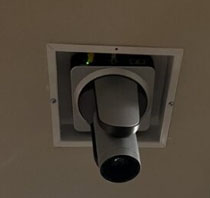
The document camera located in your classroom allows you to easily display documents, objects, and simple demonstrations to an entire classroom and/or lecture hall. The document camera in your classroom is mounted as a camera in the ceiling. Use the controls available on the panel on the instructor podium to use the document camera.
Key Features:
- Continuous auto-focus that adjusts as you zoom in and out to keep your image in clear focus
- Ability to use a larger space below the document camera
How to Use the Document Camera:
- Turn on the projector system. The document camera controls will not appear until the projector is turned on.
- Select the document camera from the option on your podium instructor panel
- Place your document or demonstration on the working surface
Other Resources:
All rooms in the Haslam Business Building are maintained by the Haslam College of Business. For training or help with this room, please contact Haslam Technology-Enhanced Education at tee@utk.edu.
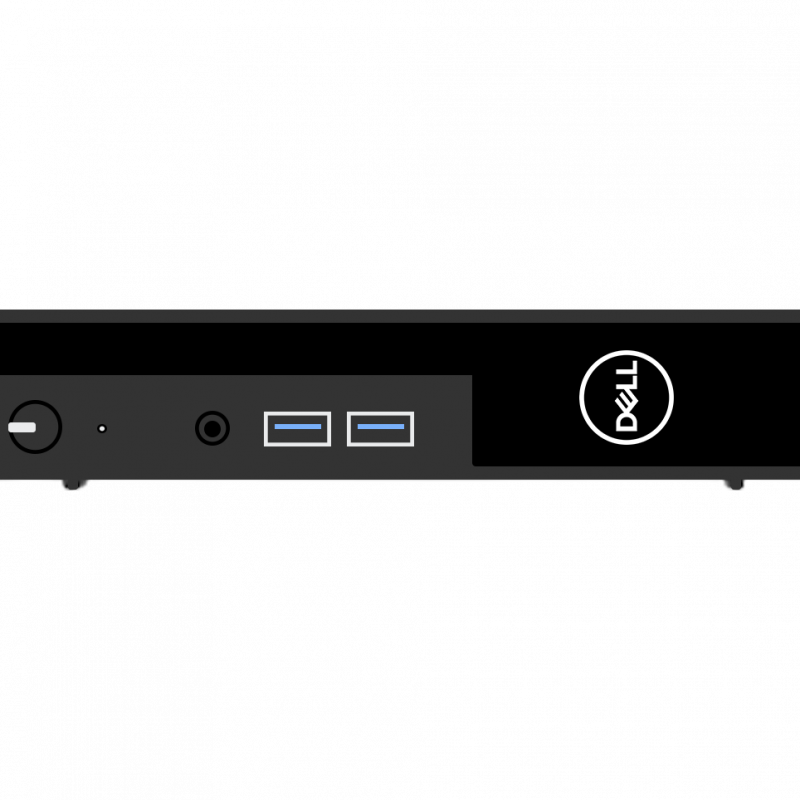
Some rooms on campus have supplied computers in the classroom. The computer in this room is supplied by the department that primarily uses the space. OIT does not have access to login information on this machine. Please contact your department to get information on how to log in or use this computer.
If this computer is using a departmentally provided username/password, make sure you log out of any app when you are done. Otherwise, anyone who logs onto the computer will be able to log into your apps under your name.
Possible Feature: Using the Camera and Supplied Computer
Some departments chose to connect a room-provided camera to the computer. IF your classroom has a camera, it MAY be connected to the room computer. If so, you should be able to use the Classroom Supplied Computer to run a Zoom meeting using the in-room microphone and camera. Note – logging onto the classroom supplied computer to Zoom will log you out of Zoom on your personal computer.
- Log onto the computer using your NetID and Password (or the computer may already be logged in for you with a local account).
- Launch Zoom
- Choose Sign in
- Select the Sign in with SSO option on the right.
- Type in Tennessee before the .zoom.us
- Select Continue
- Log in to Zoom with your NetID and Password
- Approve the Two-Factor Authentication
- Choose Launch Zoom
- Launch your meeting
- Choose Join with Computer Audio (you may want to select the checkbox to Automatically join audio by computer when joining a meeting as well)
- Turn on the lavalier (lapel-style) mic.
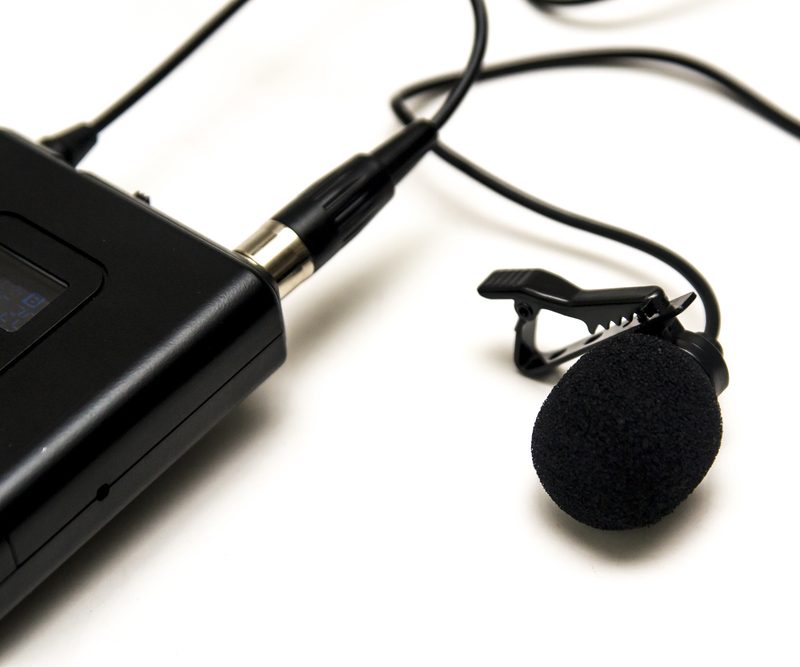
Lapel-style microphones are called Lavalier mics. Lavalier microphones are clipped to your shirt about 3-6 inches below your chin and come with a battery pack you can clip to a belt or slide in a pocket.
Tip: Adjust sound levels by going to the tab for in-room mics or microphones on the control panel. You can adjust the sound level for when you use Zoom or Panopto by going to the tab for Zoom/Panopto mic.
Each mic has been programmed to work with the audio system in your classroom. These mics will not work in other rooms because they have not been set to work with another room system and may also be incompatible with some of the equipment in that room. Please contact OIT if you need additional mics in your classroom.
Tip: when you switch the battery pack on, if the light is green, the battery charge is good. If the light is red, the battery is getting low.
To change the battery on this microphone, look for the small tab either on the side or bottom of the battery pack. Mics will take either D or AA batteries. These batteries should be available in the cable drawer of your podium. If you do not have batteries and need some immediately, contact the emergency line of the OIT HelpDesk at 865-974-9110. If you wish to just report that the room needs batteries for next time, please contact the main number of the OIT HelpDesk at 865-974-9900.
This room has a departmental Windows PC with a touchscreen monitor. Use the monitor to control the camera and room sound. All rooms in the Haslam Business Building are maintained by the Haslam College of Business. For training or help with this room, please contact Haslam Technology-Enhanced Education at tee@utk.edu.