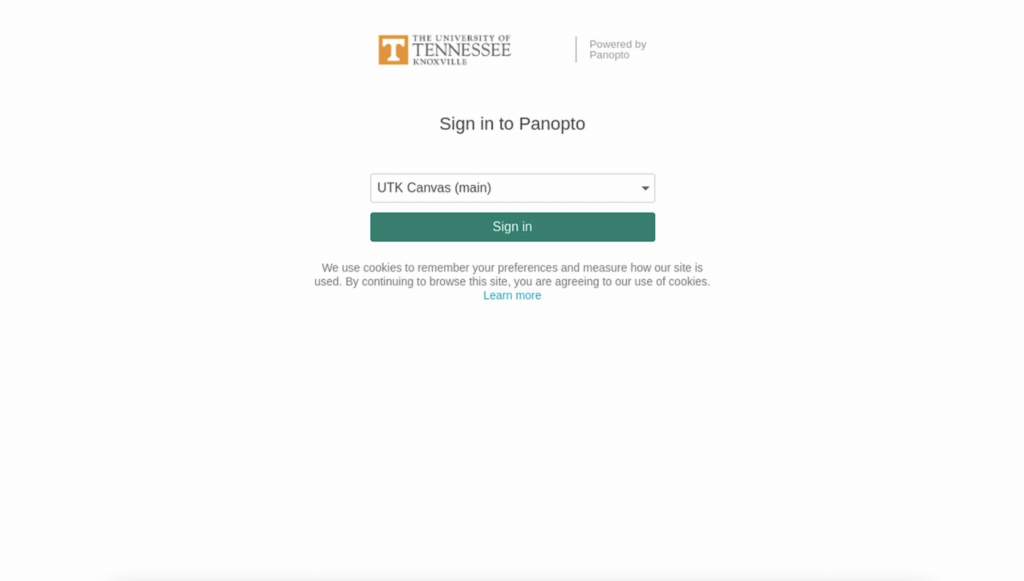
Step 1: Go to utk.hosted.panopto.com/ on your laptop web browser
Step 2: Log into UTK Canvas with your NetID and password using Two-Factor Authentication
Step 3: Choose the green Create button

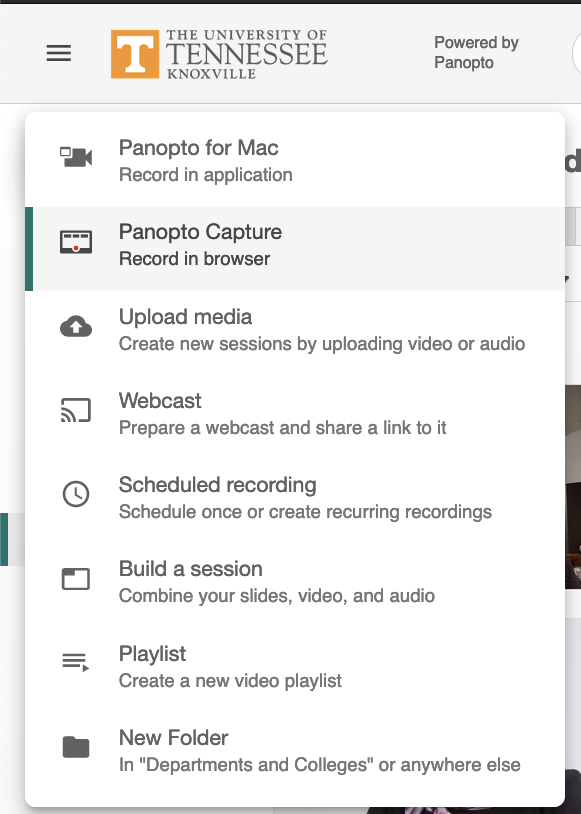
Step 4: Choose Panopto Capture: Record in Browser
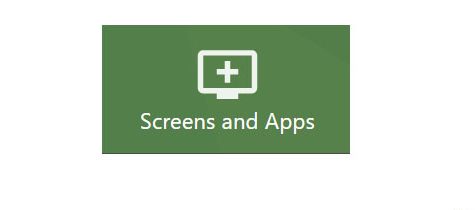
Step 5: Choose your laptop or other device previously added to Cynap by tapping the Screens and Apps button at the top of the Panopto page.
To change to a different source, select the Screens and Apps button again
Step 6: To record, tap the red circular Record button.

Step 7: To end the recording, tap the red square Stop button.
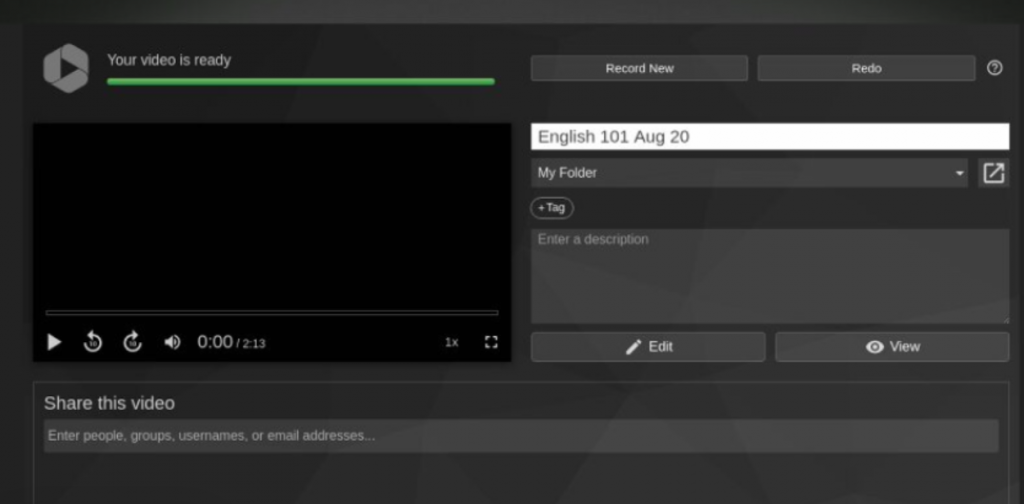
Step 8: Saving Your Recording
Recordings and Settings are automatically saved, however, you have the option to:
- Enter the name you wish to call your recording on the pop-up window.
- Choose the folder where you wish to save the recording.
- WAIT to close out the window until you see the green bar message in the upper left corner that says it is safe to close your browser window.