Nursing Style 116
Display on Screens:
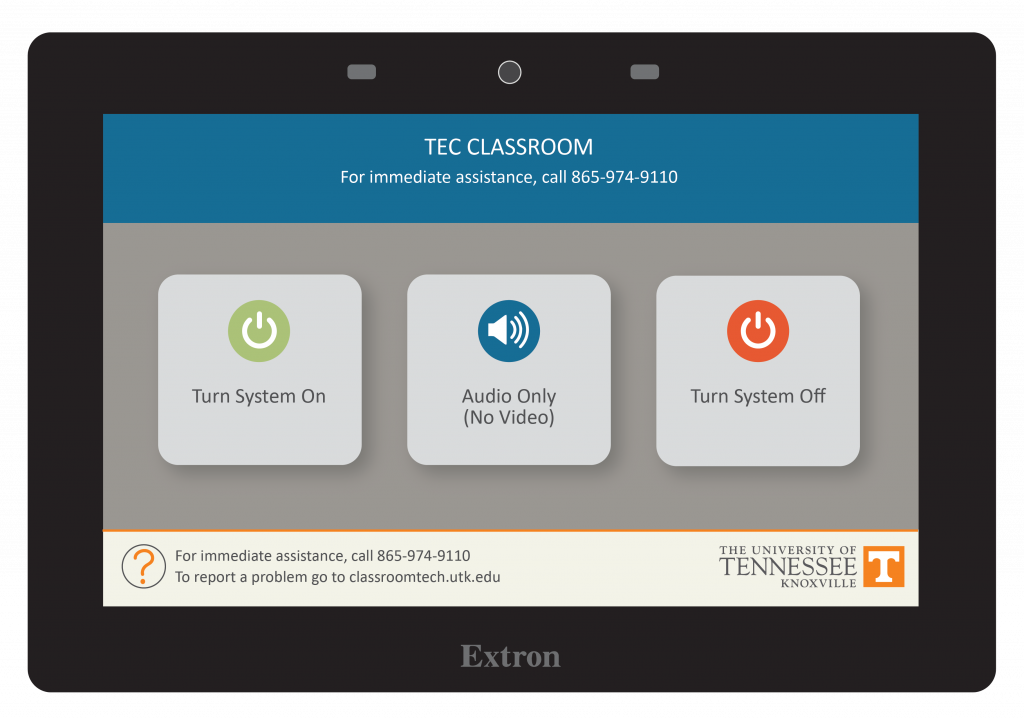
- Tap Turn System On.
- Tap the button for how you wish to display the screens.
- Send to All Screens – will put the same image on all screens.
- Front/Rear Projector – will allow you to put a different image on each screen.
- Student Monitors – will allow you to put images on the student monitors.
- Under the screen choice you picked, choose the device you wish to display on the screen such as a laptop connected to USB-C, Wall Box HDMI, Doc Cam, or Cynap.
- Additional control options for microphones, shades, displays, walls, and
- cameras.
- The Blank Screen option will stop the currently selected image from projecting on that screen.
When Finished:
- Tap Home.
- Choose Turn System Off.