Tap the button for how you wish to display the screens.
Send to All Screens – will put the same image on all screens.
Screen Group 1/2 – will allow you to put a different image on each set of screens.
Under the screen choice you picked, choose the device you wish to display on the screen such as a Cynap, Lectern laptop (your laptop connected from the lectern with HDMI or USB-C),Floor Box HDMI, Wall Box HDMI, or Doc Cam.
Display Controls allows you to choose specific screens
Additional control options for microphones, shades, displays, walls, and
cameras.
The Blank Screen option will stop the currently selected image from projecting on that screen.
When Finished:
Tap Home.
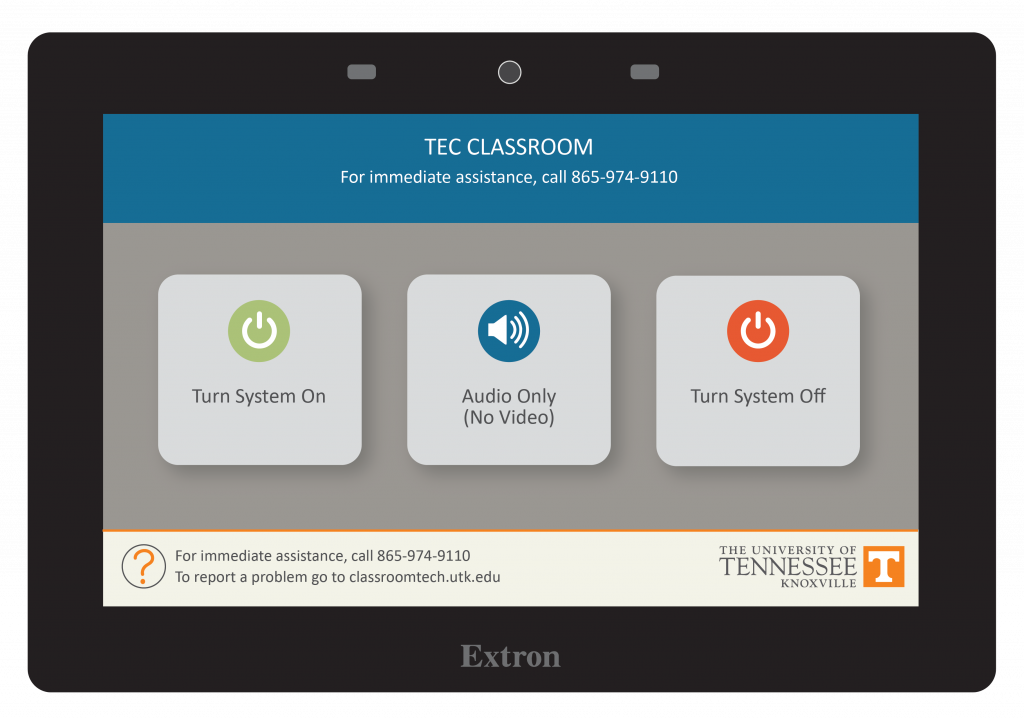
Choose Turn System Off.
Selection of device to show, example Lectern LaptopDisplay Options