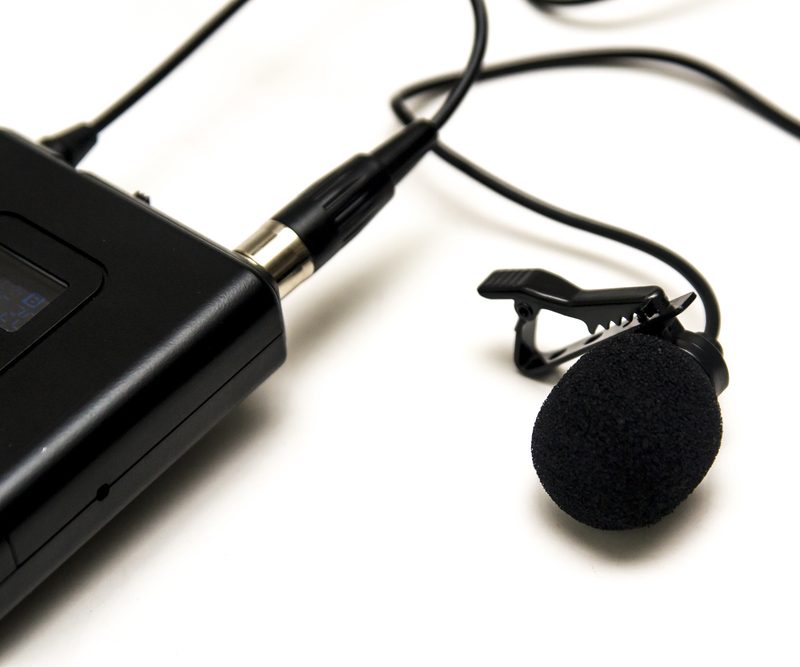
Lapel-style microphones are called Lavalier mics. Lavalier microphones are clipped to your shirt about 3-6 inches below your chin and come with a battery pack you can clip to a belt or slide in a pocket.
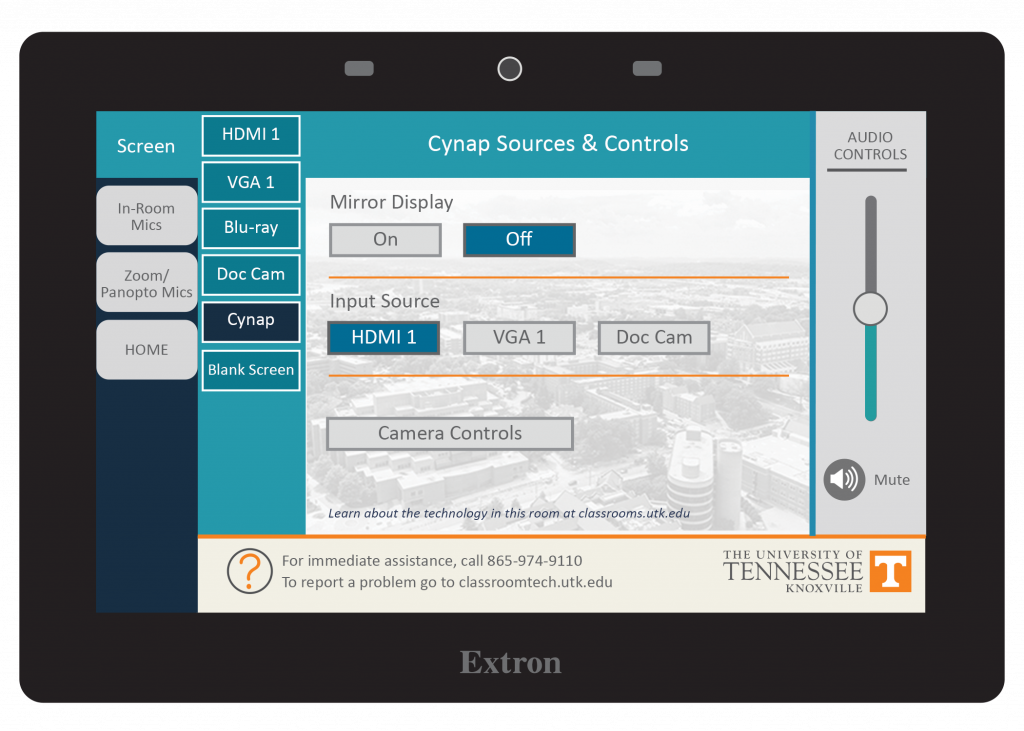
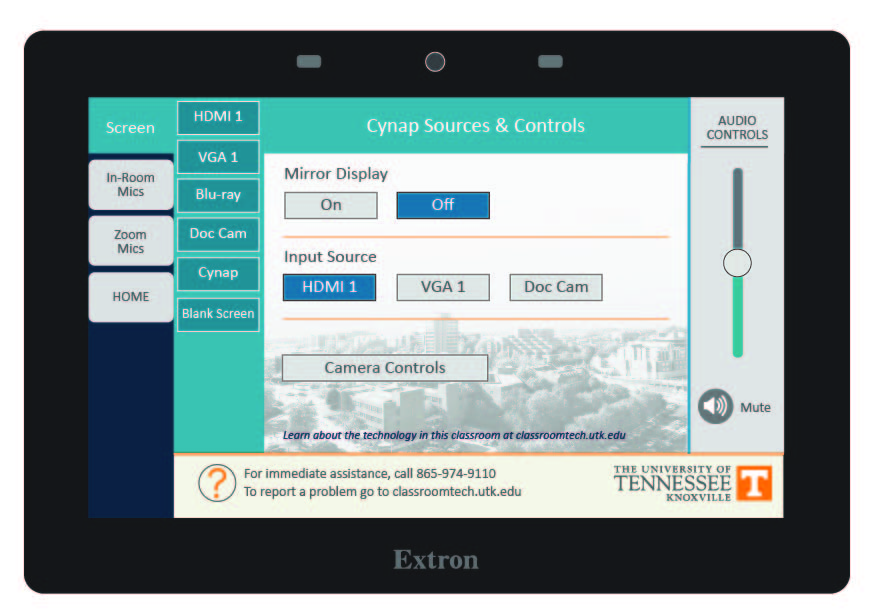
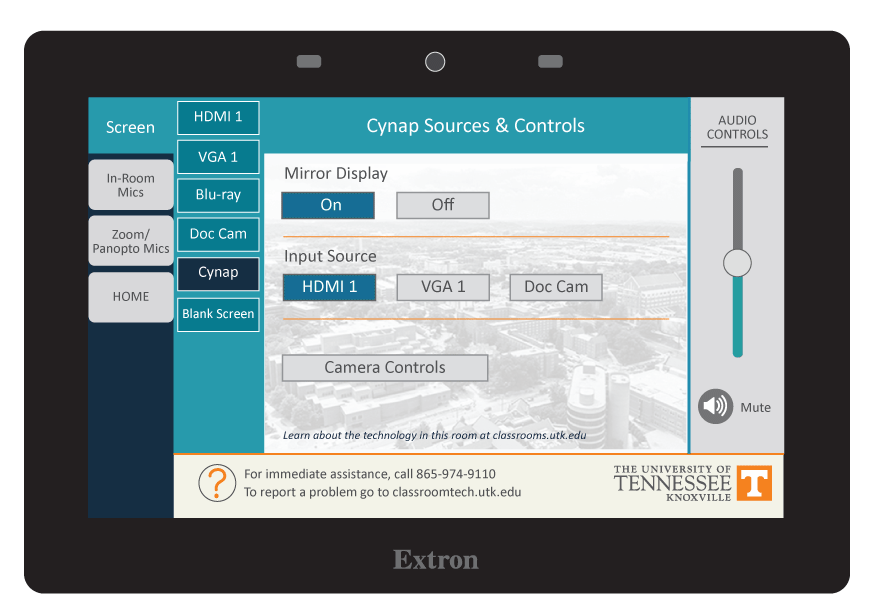
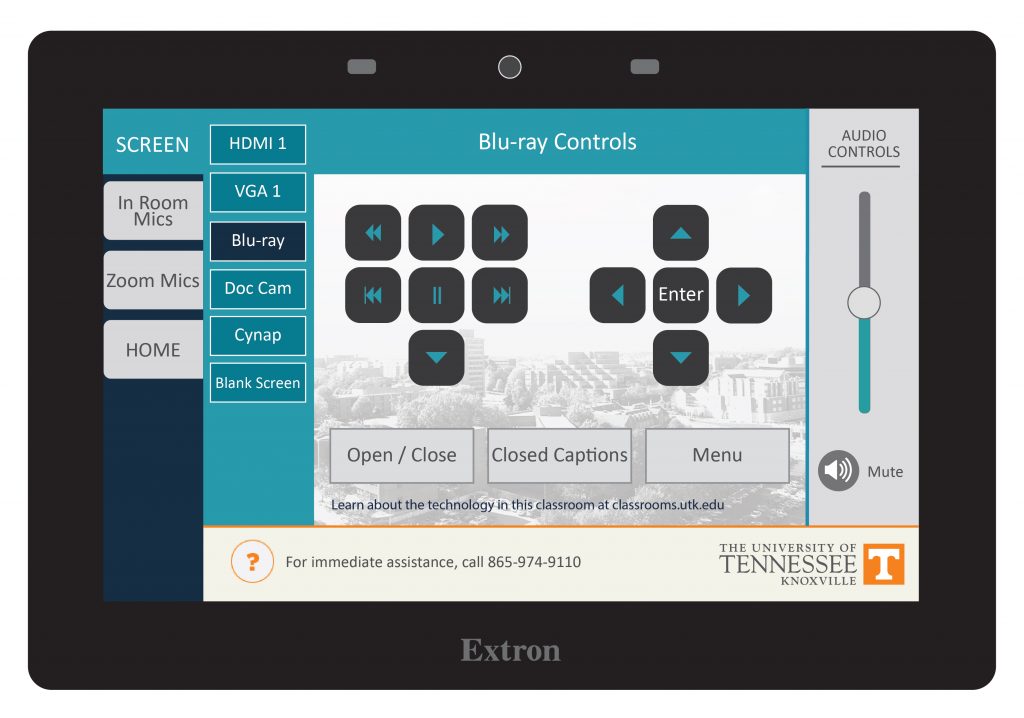
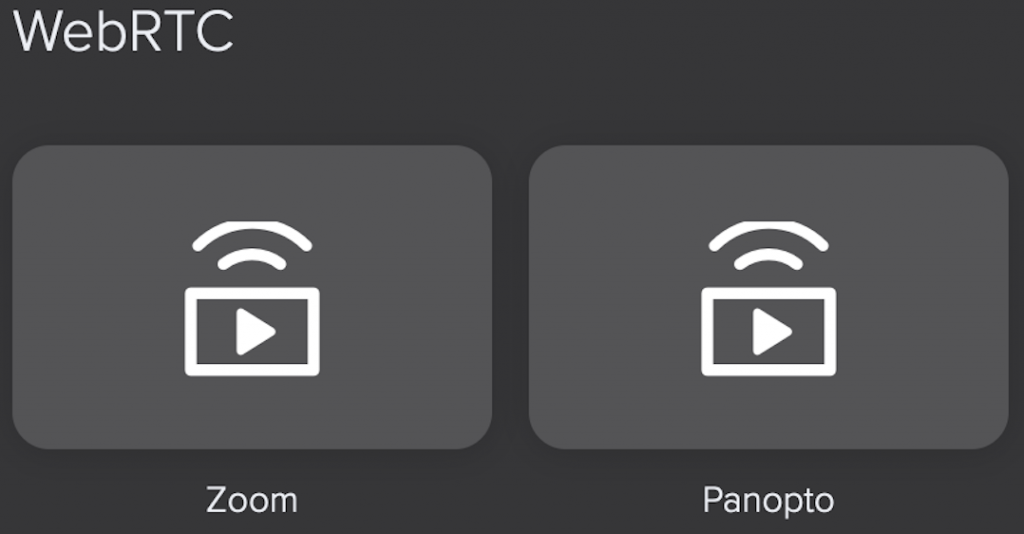
Tip: Adjust sound levels by going to the tab for in-room mics or microphones on the control panel. You can adjust the sound level for when you use Zoom or Panopto by going to the tab for Zoom/Panopto mic.
Each mic has been programmed to work with the audio system in your classroom. These mics will not work in other rooms because they have not been set to work with another room system and may also be incompatible with some of the equipment in that room. Please contact OIT if you need additional mics in your classroom.
Tip: when you switch the battery pack on, if the light is green, the battery charge is good. If the light is red, the battery is getting low.
To change the battery on this microphone, look for the small tab either on the side or bottom of the battery pack. Mics will take either D or AA batteries. These batteries should be available in the cable drawer of your podium. If you do not have batteries and need some immediately, contact the emergency line of the OIT HelpDesk at 865-974-9110. If you wish to just report that the room needs batteries for next time, please contact the main number of the OIT HelpDesk at 865-974-9900.